
iPhone App
Install ActionBox for iPhone, sign in, configure push alerts, and review Actions safely from your phone.
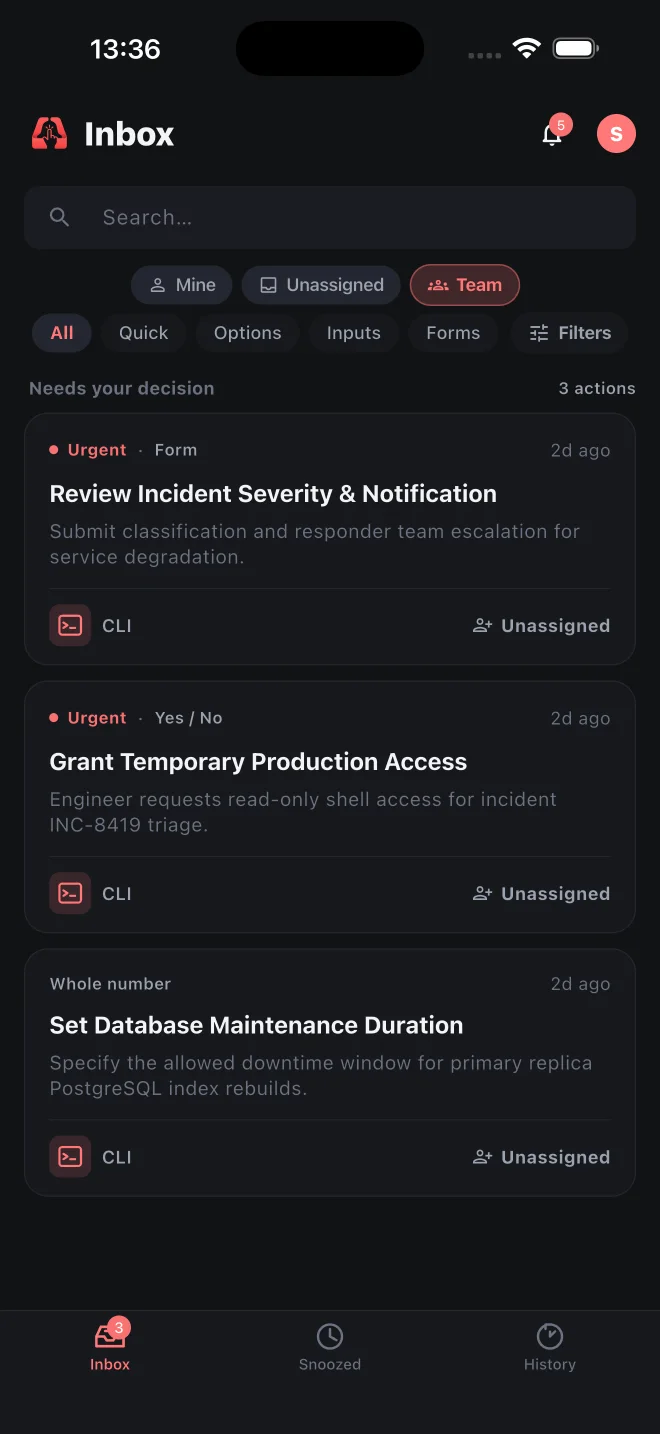
ActionBox for iPhone gives reviewers a portable view of the same Actions shown in the hosted web inbox. You can receive optional push alerts, inspect the current request and its context, respond with the required type, or snooze an Action that can wait.

The stable download link sends iPhone and iPad users to the current App Store listing and can route other platforms when they become available. The current release requires iOS 15 or later.
The Action remains authoritative
A push notification is a hint that something changed. Opening the app refreshes the Action from the server. Your integration should wait on the Action API, long polling, or a verified callback rather than treating push delivery as a decision.
Set up mobile review
- Install the app from the App Store.
- Sign in with Apple or Google using the account connected to your ActionBox workspace.
- When iOS asks, allow notifications if you want Action alerts on this device.
- Open Settings → Notification preferences to choose which events and priorities may alert you.
- Create Sources and connect your integration from the hosted console. New Actions will appear in the mobile and web inboxes for the same workspace.
Inbox
Filter open Actions by ownership and response type, then open the request that needs attention.
Action detail
Review the description, decision context, event history, notes, assignment, and available response controls.
Notifications
Open the linked Action from a push or notification record and reconcile its current state before responding.
Snooze
Move a non-urgent Action out of the active queue until a chosen time without resolving it.
Choose what appears on the lock screen
Under Settings → Notification preferences, choose a preview level for lock-screen alerts. You can also configure:
- new unassigned Actions;
- assignments and reassignments;
- expiration reminders and admin escalations;
- eligible priorities;
- quiet hours and timezone; and
- whether push delivery is enabled on the device.
iOS notification permission and ActionBox push preferences are separate controls. Both must allow delivery for an alert to appear.
If an alert does not arrive
Open Settings → Notification preferences and confirm that push is enabled, the Action priority is selected, and quiet hours are not active. Then check iOS notification settings for ActionBox. Network conditions and operating-system delivery policy can still delay or suppress an alert, so use the inbox to inspect current state.
If the problem continues, email info@actionbox.cloud and include the device model, iOS version, and approximate time of the missing alert. Do not send Source keys, webhook secrets, or other credentials.
If the device is no longer under your control, revoke it from the Devices page.
Next: Notifications, Registered clients, or Assignments and routing.