

Most n8n workflow templates show the happy path: an event arrives, several nodes run, and the workflow finishes. That is useful until one of those nodes can spend money, change production data, message a customer, or deploy code. At that point, a human approval gate belongs immediately before the consequential step.
This guide includes a working template that asks for approval in ActionBox, waits for the answer, and lets only a verified approval reach a harmless demo node. It also reports success after that node runs. You can inspect the whole workflow before replacing the demo with your own operation.
Download the n8n human approval workflow JSON
The file is the same approval.json shipped with the ActionBox n8n connector. It contains no credentials and performs no external side effect.
What the template does
The workflow has six nodes:
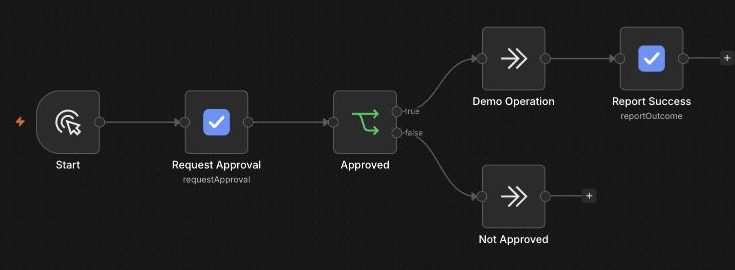
Request Approval creates the request and pauses the n8n execution. When a decision arrives, the ActionBox node verifies it and returns a boolean at actionbox.approved. The IF node tests that value. Rejection, expiry, cancellation, timeout, a changed review snapshot, or an invalid response all take the false branch.
The template deliberately uses a no-op for Demo Operation. Import it, run both branches, and inspect the result before connecting a real API.
Before you import it
You need:
- An n8n instance that you administer. The community node has been tested with n8n 2.38.7. It has not been verified for n8n Cloud.
- A public HTTPS callback address that reaches the n8n instance. ActionBox uses that address to return the decision.
- An ActionBox Source key and the webhook signing secret from the same Source.
- n8n execution data retained for at least as long as the approval timeout.
ActionBox is a hosted service at https://actionbox.cloud. Installing the community node adds the integration to your n8n instance; it does not install or self-host ActionBox.
1. Install the ActionBox community node
Sign in to n8n as an owner or admin, then open Settings → Community Nodes → Install. Enter:
n8n-nodes-actionboxRead n8n's community-node notice before you accept it. If the installation option is unavailable, check n8n's official community-node installation guide.
The package is published on npm as n8n-nodes-actionbox. This article and its download were checked against package version 0.1.1 on September 12, 2026.
2. Import the workflow JSON
Download the ActionBox approval workflow, then import the JSON file into n8n. The canvas should show this path:
Start → Request Approval → Approved
                              ├─ true  → Demo Operation → Report Success
                              └─ false → Not Approved
If n8n marks either ActionBox node as unknown, confirm that the community package is installed and enabled before editing the workflow.
The download targets the npm-installed node identifier. The connector's source repository also has a local Docker setup for development, but that setup adjusts the node identifier. Follow its Docker guide if you are evaluating the connector from source.
3. Add the credentials
Create a Source in the ActionBox dashboard. Copy the Source key and its webhook signing secret when they are shown. In n8n, create ActionBox API credentials and save both values there.
The two secrets have different jobs:
| Credential | Purpose |
|---|---|
| Source key | Authenticates API requests from the node |
| Webhook signing secret | Lets the node verify approval callbacks |
Keep both values in n8n's credential store. Do not paste them into workflow fields, Code nodes, descriptions, or exported JSON.
Select these credentials on Request Approval and Report Success. The optional connection test reads an Action that belongs to the Source. If the Source is new, save the credentials, run the first request, and then use its Action ID for the test. That check validates the Source key. A signed callback validates the signing secret separately.
The full setup is documented in the ActionBox n8n integration guide.
4. Run the safe demo first
Open Request Approval and give the request a title that states the decision. For example:
Approve this n8n test?Use a short timeout for the first run. Five minutes is enough to test the path without leaving an old request open all day.
Start the workflow, open the request in ActionBox, and select Approve. The execution should pass through Demo Operation and then Report Success.
Run it again and select Reject. This time it should end at Not Approved. No node on the false branch should call the system you intend to protect.
The IF node uses this expression:
{{ $json.actionbox.approved }}Keep the test strict. Do not branch on the presence of a callback, a non-empty response, or a status that merely looks successful.
5. Understand the decision output
The waiting node keeps the original item in input and adds an actionbox object:
{
  "input": {
    "change_id": "change_4821"
  },
  "actionbox": {
    "action_id": "returned-action-id",
    "approved": true,
    "decision_status": "approved",
    "action_version": 1,
    "fingerprint": "returned-sha256-fingerprint",
    "response": {
      "type": "single_choice",
      "value": "approve"
    }
  }
}
The exact response data can vary by decision. The branch should rely on the verified actionbox.approved boolean.
decision_status can be approved, rejected, expired, cancelled, timed_out, snapshot_changed, or invalid_response. Only approved produces approved: true. A timeout means the execution did not receive a usable decision before its deadline. It does not mean the reviewer rejected the request.
The node also returns the Action version and fingerprint submitted for review. Report Success sends those values back so the outcome remains tied to the decision the reviewer actually saw.
6. Replace the no-op with one real operation
Once the demo behaves correctly, replace Demo Operation with the API or n8n node you need to protect. Good first candidates include:
- issuing a refund above a chosen amount
- deploying a production release
- sending a high-impact customer message
- deleting or rewriting production records
- granting temporary privileged access
Pass the original business identifier through the workflow. If the downstream API supports idempotency, use that stable identifier as its idempotency key. Human approval gives an operation permission to run. It does not make the operation exactly once.
Keep the operation on the true output of the IF node. The rejection path should end cleanly or record why no change was made.
7. Add a failed outcome path
The starter workflow reports success after the demo node. A real workflow also needs an error branch from the protected operation to another ActionBox node configured with Report Outcome → Failed.
Map the Action ID, version, and fingerprint from Request Approval. If you rename that node, update the expressions that refer to it.
Reporting an outcome answers a different question from approval:
| Record | Question it answers |
|---|---|
| Approval | Was this operation allowed to run? |
| Outcome | Did the approved operation succeed or fail? |
Do not report success before the consequential node finishes. If outcome reporting fails, reconcile the downstream operation before retrying it. A missing outcome is not a reason to run the operation again.
8. Test the failures that matter
A workflow is not ready after one successful approval. Check these cases while the protected node is still harmless:
| Test | Expected behavior |
|---|---|
| Reviewer approves | True branch runs once and reports success |
| Reviewer rejects | False branch runs; protected operation does not run |
| Request expires | approved is false |
| Approval times out | approved is false |
| Action is cancelled | approved is false |
| n8n restarts while waiting | Saved execution resumes safely when delivery succeeds |
| Protected operation fails | Failed outcome path runs |
Stopping an n8n execution does not cancel its Action automatically. Use the connector's Cancel Action operation for a request that should no longer be answerable, or let its configured expiry close it.
This connector does not use background polling as a fallback. A callback that cannot be admitted leaves the execution on its safe timeout path. Use Get Action for explicit reconciliation, compare the saved version and fingerprint, and confirm whether the downstream operation already ran before taking manual action.
When this template is a good fit
Use this template when the request should appear in the same ActionBox inbox as approvals from other tools, or when you want the outcome attached to the original decision. It also gives an n8n workflow a clear false branch for rejection, timeout, and invalid decisions.
n8n has its own human review features for some AI Agent tool calls and supported channels. Those may be the shorter path when the whole review belongs inside that n8n feature. The n8n human-in-the-loop guide compares the approaches and also documents a manual HTTP integration.
Start with the importable workflow
Install n8n-nodes-actionbox, download the workflow JSON, and test approval, rejection, expiry, and restart behavior before replacing the no-op.
Create a free Source · Read the n8n integration guide · Open the n8n human-in-the-loop guide